Associate Vesture With Map Tutorial: Difference between revisions
Jump to navigation
Jump to search

No edit summary |
No edit summary |
||
| Line 1: | Line 1: | ||
{{AssociateItems|Vesture|Map|Form:Associate Vesture With Map}} | {{AssociateItems|Vesture|Map|Form:Associate Vesture With Map}} | ||
#{{DashedSetOfItems|Vesture|Map|}} | #{{DashedSetOfItems|Vesture|Map|}} | ||
[[File:Associate_Vesture_With_Map.PNG|frameless|none|thumb]] | [[File:Associate_Vesture_With_Map.PNG|frameless|none|thumb]] | ||
#<li value="2">Type into the auto-completing text fields to find Map and Vesture or click on the field to activate a drop-down (not recommended as the lists will both grow to very great lengths).</li> | #<li value="2">Type into the auto-completing text fields to find Map and Vesture or click on the field to activate a drop-down (not recommended as the lists will both grow to very great lengths).</li> | ||
[[File:Associate_Vesture_With_Map_Form.PNG|frameless|none|thumb]] | [[File:Associate_Vesture_With_Map_Form.PNG|frameless|none|thumb]] | ||
#<li value="3">Click "Save Page."</li> | #<li value="3">Click "Save Page."</li> | ||
Revision as of 10:52, 12 April 2023
This tutorial will describe how to associate a Vesture with a Map using the Associate Vesture With Map form. Note that both Vesture and Map must exist in the Cargo system in order for this to work, otherwise the drop-downs on the form will not populate!
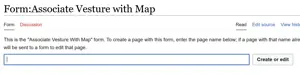
- Name the form <Vesture Name>-<Map Name>including the dash. So a Book found in Library would be Book-Library. (This isn't a page anyone is looking at, it's invisible linkage so that pages people do read work correctly). If copying from another source, don't worry about special characters as pasting them into a browser bar tends to see them handled correctly (Firefox at least).


- Type into the auto-completing text fields to find Map and Vesture or click on the field to activate a drop-down (not recommended as the lists will both grow to very great lengths).

- Click "Save Page."