Associate Vesture With Map Tutorial: Difference between revisions
Jump to navigation
Jump to search


(Created page with "This tutorial will describe how to obtain the information necessary to fill out the '''Associate Vesture With Map''' form. Prerequisite: The Map and Vesture must both exist in the Cargo system. #Name the form <Vesture Name>-<Map Name> including the dash, So a Vesture called Apple found on a map called Orchard would be "Apple-Orchard" as the page name. (This isn't a page anyone is looking at, it's invisible linkage so that pages peo...") |
No edit summary |
||
| Line 1: | Line 1: | ||
{{AssociateItems|Vesture|Map|Form:Associate Vesture With Map}} | |||
#Name the form <Vesture Name>-<Map Name> including the dash, So a Vesture called Apple found on a map called Orchard would be "Apple-Orchard" as the page name. (This isn't a page anyone is looking at, it's invisible linkage so that pages people do read work correctly). If pasting from a document, don't worry about special characters in names as pasting them into a browser bar tends to see them handled correctly (Firefox at least). | #Name the form <Vesture Name>-<Map Name> including the dash, So a Vesture called Apple found on a map called Orchard would be "Apple-Orchard" as the page name. (This isn't a page anyone is looking at, it's invisible linkage so that pages people do read work correctly). If pasting from a document, don't worry about special characters in names as pasting them into a browser bar tends to see them handled correctly (Firefox at least). | ||
Revision as of 10:22, 12 April 2023
This tutorial will describe how to associate a Vesture with a Map using the Associate Vesture With Map form. Note that both Vesture and Map must exist in the Cargo system in order for this to work, otherwise the drop-downs on the form will not populate!
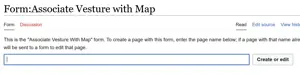
- Name the form <Vesture Name>-<Map Name> including the dash, So a Vesture called Apple found on a map called Orchard would be "Apple-Orchard" as the page name. (This isn't a page anyone is looking at, it's invisible linkage so that pages people do read work correctly). If pasting from a document, don't worry about special characters in names as pasting them into a browser bar tends to see them handled correctly (Firefox at least).


- Type into the auto-completing text fields to find Map and Vesture or click on the field to activate a drop-down (not recommended as the lists will both grow to very great lengths).

- Click "Save Page."